# Upgrading to .NET MAUI Preview 11
[.NET MAUI Preview 11](https://github.com/dotnet/maui/releases/tag/6.0.101-preview.11.3) was released a little over a week ago but it was something of a stealth release due to a late bug in Visual Studio 2022 17.1 Preview 2. We can still install Preview 11 using the CLI but there are some caveats. In this article I explain how to install .NET MAUI Preview 11, what issues you might encounter and how to upgrade an app from Preview 10 to Preview 11.
## Installing .NET MAUI Preview 11
**Update: Visual Studio 2022 17.1 Preview 2 is now available and is the recommended method to install [.NET MAUI Preview 11](https://devblogs.microsoft.com/dotnet/announcing-dotnet-maui-preview-11). CLI install is no longer needed, see below for how to [remove the CLI workloads](#heading-removing-cli-workloads) and install with VS2022.**
.NET MAUI Preview 11 can be installed using the command line but will break XAML Hot Reload in Visual Studio 2022 17.1 Preview 1 and risks conflicts once Visual Studio 2022 17.1 Preview 2 is released. If you're willing to accept those issues the process is fairly simple:
1. Close all Visual Studio + Visual Studio Installer windows
2. Install [.NET v6.0.1](https://dotnet.microsoft.com/en-us/download/dotnet/6.0) (aka v6.0.101)
3. `dotnet --version` (check for 6.0.101)
4. `dotnet workload update`
5. `dotnet workload install maui`
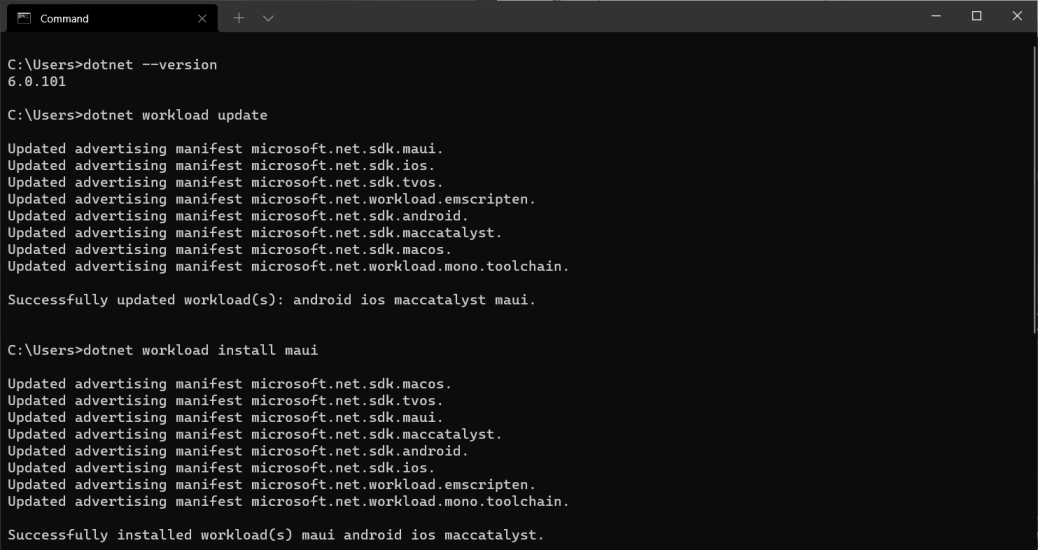
At this point it is recommended to create a new MAUI project using the command line `dotnet new maui` to check for templates that need to be installed or updated. This command will install or update all MAUI templates:
```txt
dotnet new --install Microsoft.Maui.Templates
```
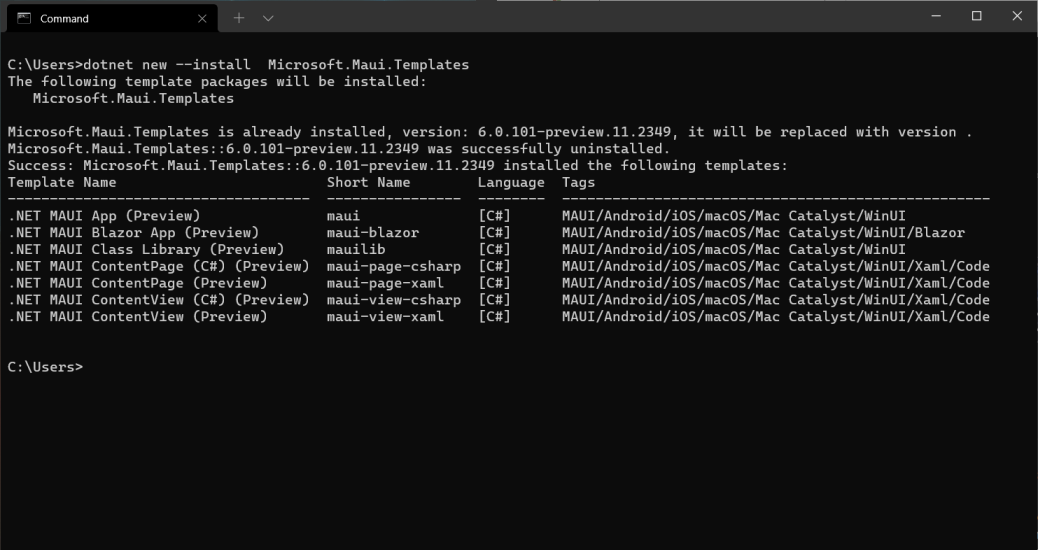
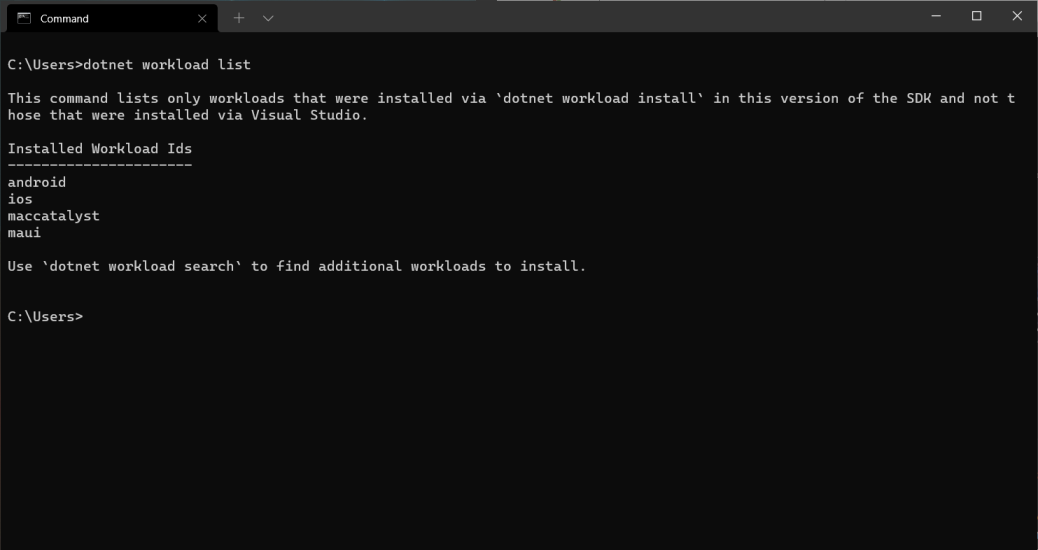
Another useful command is `dotnet workload list` which will show all the workloads installed from the command line - note it does not list workloads installed using the Visual Studio Installer.
### Disable XAML Hot Reload
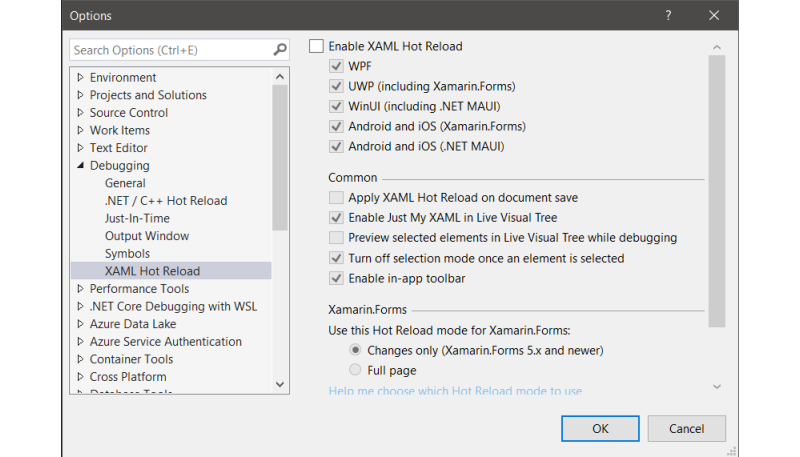
As mentioned Preview 11 breaks XAML Hot Reload in Visual Studio 2022 17.1 Preview 1. I didn't find any problems running a MAUI app on Windows with XAML Hot Reload still enabled but when I tried Android the app wouldn't run. To disable XAML Hot Reload in Visual Studio:
1. Open the Options window (**Tools** | **Options**)
2. Expand the **Debugging** section
3. Untick **Enable XAML Hot Reload** at the top of the window
### Removing CLI Workloads
Now that Visual Studio 2022 17.1 Preview 2 is available we should remove the CLI workloads before updating Visual Studio. We can do this with the `dotnet workload uninstall` command:
```txt
dotnet workload uninstall maui
dotnet workload uninstall android
dotnet workload uninstall ios
dotnet workload uninstall maccatalyst
```
Check that you have uninstalled all the workloads with `dotnet workload list` and you can update to Visual Studio 2022 17.1 Preview 2. Remember to re-enable Hot Reload after the update.
## Updating an app for .NET MAUI Preview 11
In order to update [MAUI Beach](https://github.com/irongut/MauiBeach) from Preview 10 to Preview 11 I made the following changes. You can also see them on GitHub [here](https://github.com/irongut/MauiBeach/commit/422f2f6ceaeac1aec81b9d809c1bdf96e719a708) and [here](https://github.com/irongut/MauiBeach/commit/63a1710327b26047f876c58e5a49b9691841e276).
### Required Changes for Windows
In your project file `*.csproj` change the `RuntimeIdentifier` to `win10-x64` in this section:
```xml
WinExe
win10-x64
```
You will also need to update the `Microsoft.WindowsAppSDK` and `Microsoft.Graphics.Win2D` dependencies. Using the Visual Studio package manager didn't work for me because those packages are in their own conditional `ItemGroup` so I would recommend updating them by editing your `*.csproj` manually:
```xml
```
When I tried to run my app on Windows I ran into this error related to a splash screen:
```txt
DEP0700: Registration of the app failed. [0x80073CF6]
AppxManifest.xml(33,27): error 0x80070002: Cannot install or update package
because the splash screen image [appiconfgSplashScreen.png] cannot be located.
```
I'm not sure if this was because of Preview 11 but I was able to fix it by updating the `uap:SplashScreen` property in `Platforms/Windows/Package.appxmanifest`:
```xml
```
Amusingly I still don't actually see a splash screen on Windows but it compiles and runs. 🤷♂️
### Required Changes for Android
In `Platforms/Android/MainActivity.cs` add the `OnCreate` and `OnRequestPermissionsResult` methods from the new template:
```c#
public class MainActivity : MauiAppCompatActivity
{
protected override void OnCreate(Bundle savedInstanceState)
{
base.OnCreate(savedInstanceState);
Platform.Init(this, savedInstanceState);
}
public override void OnRequestPermissionsResult(int requestCode, string[] permissions, Permission[] grantResults)
{
Platform.OnRequestPermissionsResult(requestCode, permissions, grantResults);
base.OnRequestPermissionsResult(requestCode, permissions, grantResults);
}
}
```
### Required Changes for iOS & MacCatalyst
I didn't find any changes that were necessary for iOS or MacCatalyst. 🎉
### Optional Changes
The .NET MAUI Preview 11 app template uses C# 10 implicit [global usings](https://docs.microsoft.com/en-us/dotnet/csharp/whats-new/csharp-10#global-using-directives) and [file-scoped namespaces](https://docs.microsoft.com/en-us/dotnet/csharp/whats-new/csharp-10#file-scoped-namespace-declaration). If you want to opt-in to implicit global usings add the following property to the first `PropertyGroup` in your `*.csproj`:
```xml
enable
```
You can then remove most of the `using` statements in your code!
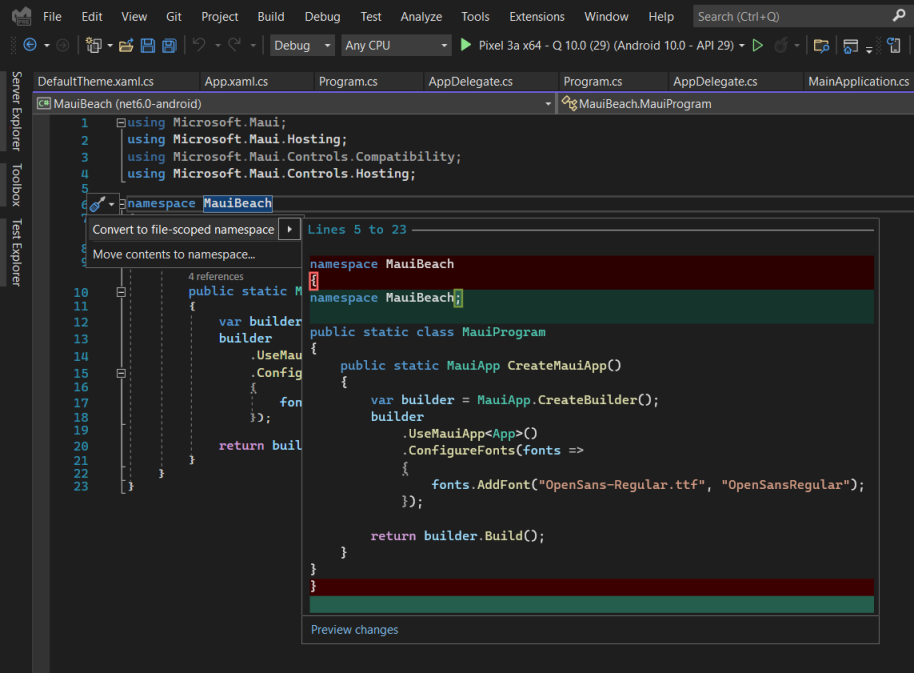
File-scoped namespaces are even easier to use. Just open a `*.cs` file and place your cursor on the namespace line, a Quick Action icon will appear, click the **Convert to file-scoped namespace** action and you're done.
## Useful Links
- [.NET December Updates](https://devblogs.microsoft.com/dotnet/december-2021-updates/)
- [.NET 6 Downloads](https://dotnet.microsoft.com/en-us/download/dotnet/6.0)
- [MAUI Preview 11 Release](https://github.com/dotnet/maui/releases/tag/6.0.101-preview.11.3)
Cover image includes a vector created by brgfx from [www.freepik.com](https://www.freepik.com/vectors/tree).